> ## Documentation Index
> Fetch the complete documentation index at: https://benrover-docs.tekbot.io/llms.txt
> Use this file to discover all available pages before exploring further.

# Configuring the Raspberry Pi with USB Camera

> A step-by-step guide to set up a USB camera on Raspberry Pi using the motion package

## Configuring the Raspberry Pi with the USB camera

<Steps>
  <Step title="Install motion package">
    Run the following command:

    ```bash theme={null}
    sudo apt-get install motion
    ```
  </Step>

  <Step title="Check motion service status">
    Execute the command:

    ```bash theme={null}
    sudo service motion status
    ```
  </Step>

  <Step title="Create required directories">
    If you encounter an error about missing Motion folders, create them:

    ```bash theme={null}
    sudo mkdir /var/log/motion
    sudo mkdir /var/lib/motion
    ```

    Verify the folders were created:

    ```bash theme={null}
    ls -ld /var/log/motion
    ls -ld /var/lib/motion
    ```
  </Step>

  <Step title="Set permissions">
    Grant necessary permissions:

    ```bash theme={null}
    sudo chmod -R 777 /var/log/motion
    sudo chmod -R 777 /var/lib/motion
    ```
  </Step>

  <Step title="Recheck motion service status">
    Run the command again:

    ```bash theme={null}
    sudo service motion status
    ```

    If you still encounter an "access denied" error, repeat the chmod commands from Step 4.
  </Step>

  <Step title="Backup and edit motion configuration">
    Make a backup of the configuration file:

    ```bash theme={null}
    sudo cp /etc/motion/motion.conf /etc/motion/motion.conf.bckp
    ```

    Edit the configuration file:

    ```bash theme={null}
    sudo nano /etc/motion/motion.conf
    ```
  </Step>

  <Step title="Start motion service">
    Start the service and check its status:

    ```bash theme={null}
    sudo service motion start
    sudo service motion status
    ```
  </Step>

  <Step title="Edit motion log (if enabled)">
    If enabled, edit the motion log:

    ```bash theme={null}
    sudo nano ~/.motion/motion.log
    ```

    Modify the following parameters:

    <Table>
      <TableHead>
        <TableRow>
          <TableHeaderCell>Parameter</TableHeaderCell>
          <TableHeaderCell>Value</TableHeaderCell>
        </TableRow>
      </TableHead>

      <TableBody>
        <TableRow>
          <TableCell>webcontrol\_port</TableCell>
          <TableCell>8080</TableCell>
        </TableRow>

        <TableRow>
          <TableCell>webcontrol\_localhost</TableCell>
          <TableCell>on</TableCell>
        </TableRow>

        <TableRow>
          <TableCell>stream\_port</TableCell>
          <TableCell>8081</TableCell>
        </TableRow>

        <TableRow>
          <TableCell>stream\_localhost</TableCell>
          <TableCell>off</TableCell>
        </TableRow>

        <TableRow>
          <TableCell>output\_movie</TableCell>
          <TableCell>on</TableCell>
        </TableRow>

        <TableRow>
          <TableCell>stream\_quality</TableCell>
          <TableCell>100</TableCell>
        </TableRow>

        <TableRow>
          <TableCell>Width</TableCell>
          <TableCell>1280</TableCell>
        </TableRow>

        <TableRow>
          <TableCell>Height</TableCell>
          <TableCell>720</TableCell>
        </TableRow>
      </TableBody>
    </Table>
  </Step>
</Steps>

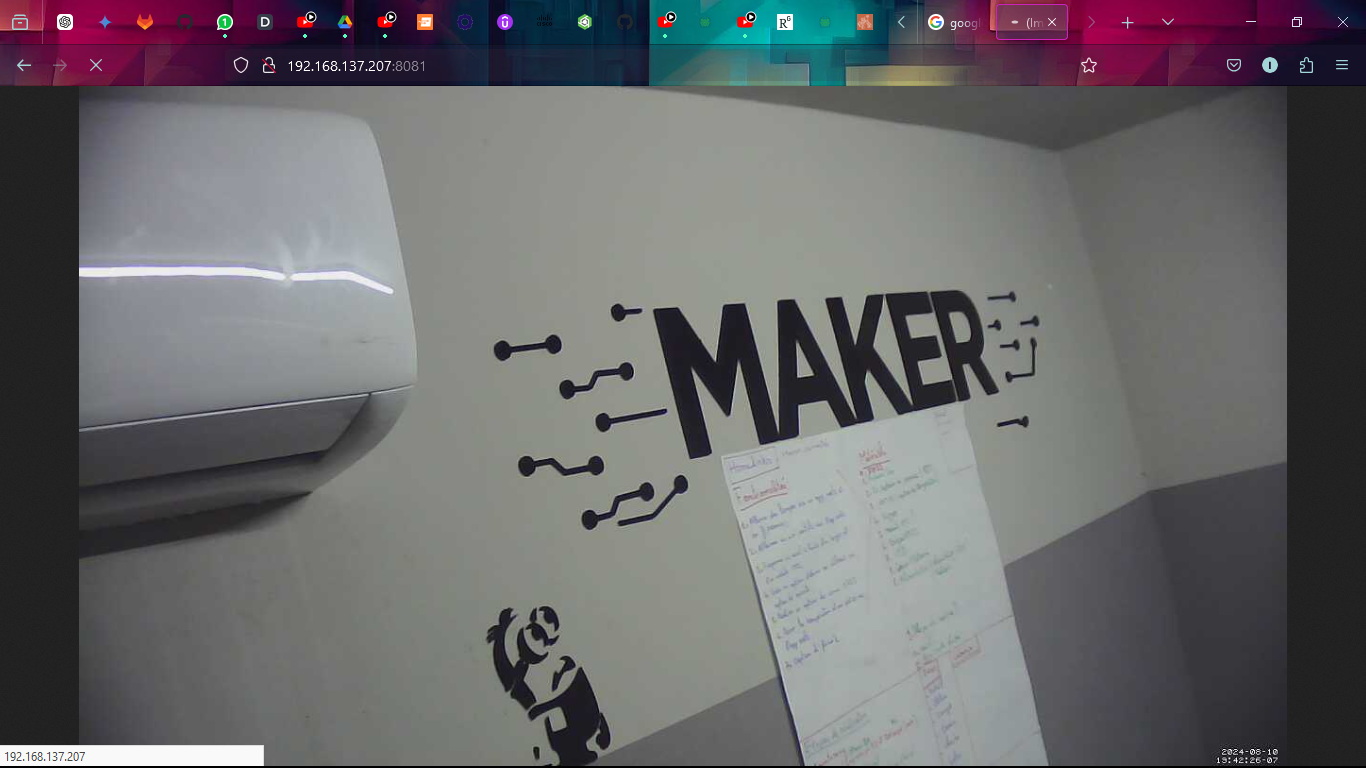
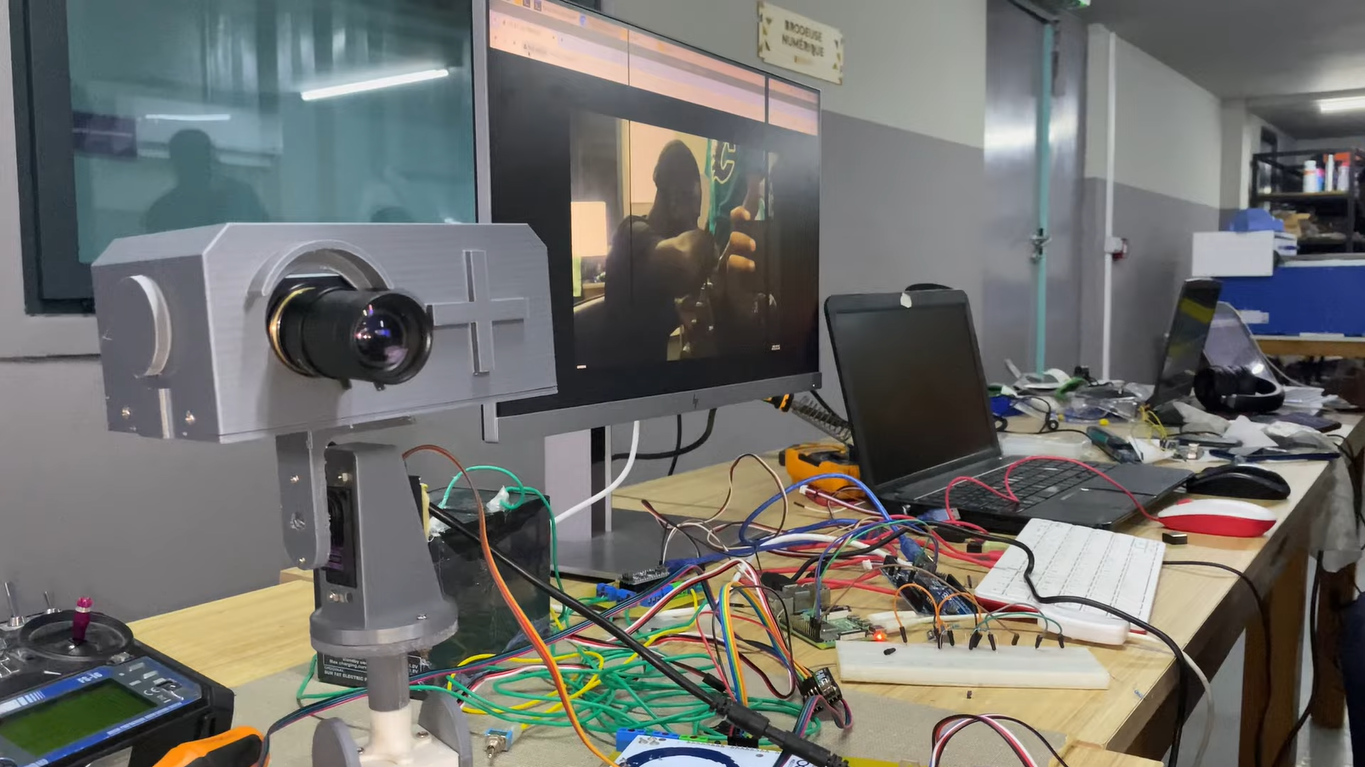
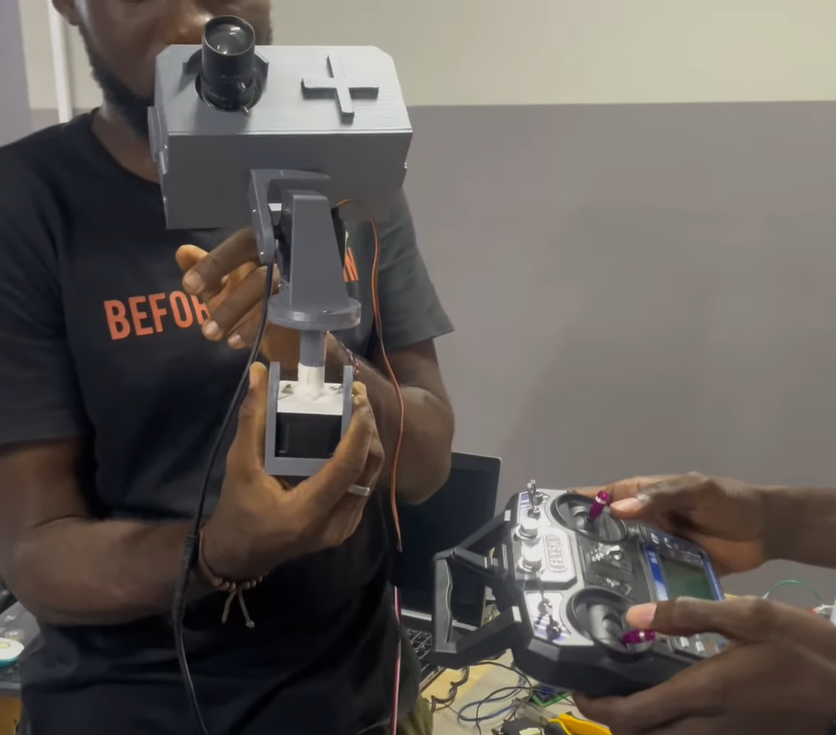
## Camera Feed Examples

<CardGroup cols={3}>
  <Card title="Camera Setup">
    <img src="https://raw.githubusercontent.com/BenRover-24/docs/main/docs/electronics/images/cam.png" alt="Live feed from camera" />
  </Card>

  <Card title="Live Feed 1">
    <img src="https://raw.githubusercontent.com/BenRover-24/docs/main/docs/electronics/images/live1.png" alt="Live feed from camera" />
  </Card>

  <Card title="Live Feed 2">
    <img src="https://raw.githubusercontent.com/BenRover-24/docs/main/docs/electronics/images/live2.png" alt="Live feed from camera" />
  </Card>
</CardGroup>